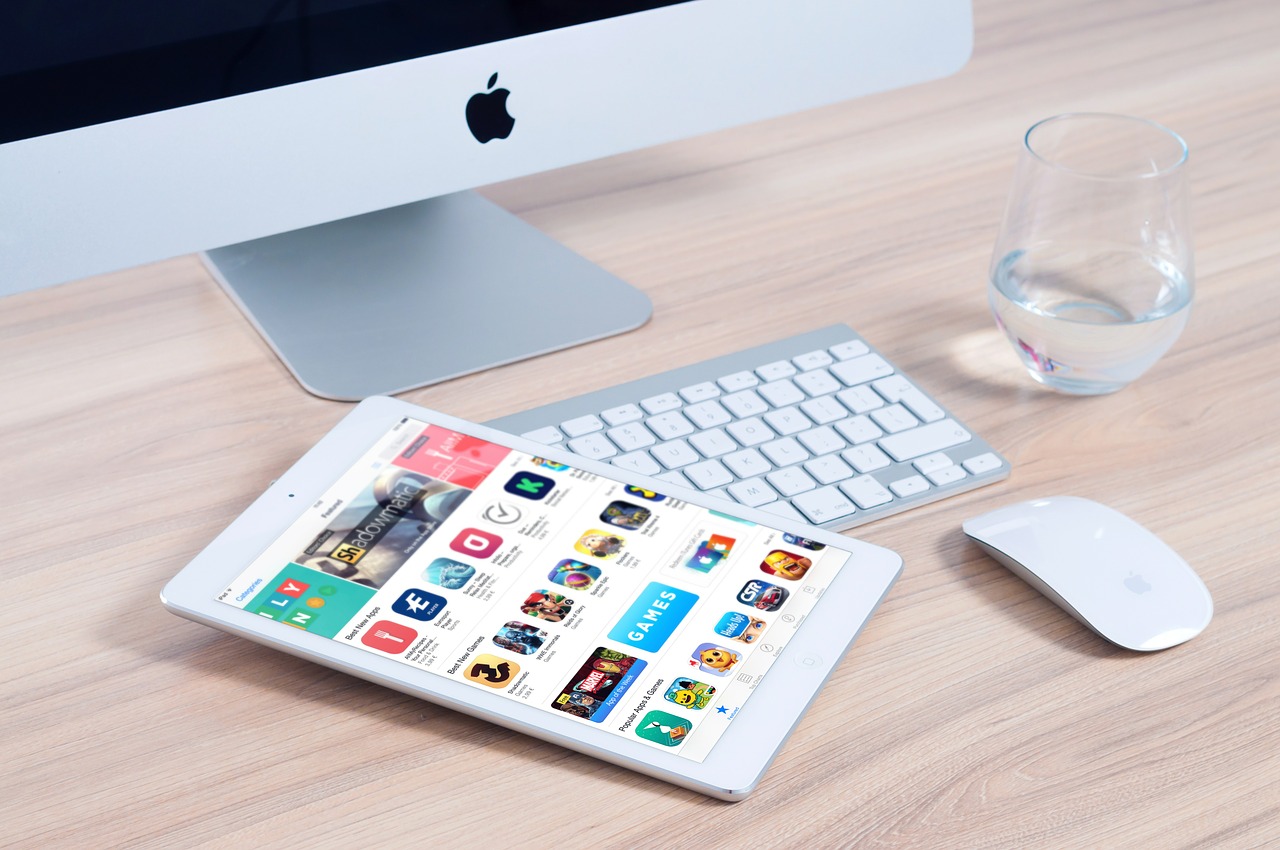
Newest Free Mac Apps for Better Productivity

We all have trouble focusing from time to time. With the massive time waster that is the Internet tempting us with endless pages of Lolcats, YouTube videos, social-networking sites and Netflix, it is practically turning us all into creatures with the attention span of a goldfish. When was the last time you actually got through a task without checking Facebook? Or sending a text? I bet you can’t even remember.

It is no surprise that an avalanche of free applications has been released by developers for the Mac that helps to combat the lack of productivity that sometimes occurs in our everyday lives. Whether the issue is that there isn’t enough time in a day to get it all done or you just don’t seem to know where the time is going, these apps can help. [Read more]

Why You Should Backup Your Blog

It would be nice if all bloggers had to worry about was coming up with the next great post.  But in a world of constant security threats, even WordPress blogs need to up backed up once in a while.  And it’s better if you can backup your blog on a daily basis if you are updating the content that much.  There are several very good reasons you should be backing up your blog, but not all of them have to do with hackers or spammers.

Server problems

You may think that it will never happen to you, but servers do crash.  And your webhost may not have all those files backup for you.  I have heard many stories of those who have had dedicated servers that have crashed and they lost everything that was on their site.  Don’t think this can’t happen to you.  All of the hard work you put into your blog can be lost in a moment and it usually happens without any warning to prepare you for it.  But by having a simple backup of your blog you can make sure that even if your server completely melts down, you will be able to get your site up and running again in a matter of minutes instead of days and weeks. [Read more]

Search Engine History

Nowadays we take the existence of search engines, especially Google (and Bing) as normal and for many among us a life without Google would be hard to imagine. Whether it is because they are not older than 20 yet and have grown up in a world dominated by technology and the internet, or because they are baby boomers, probably having taken out more than one credit loan over the last two decades.

Let’s face it: search engines are everywhere nowadays and have become an integral part of our life, invading our space ever more. Whether it is web surfing the web on your computer, browsing with your smartphone or even looking for directions online. Google and co. are the starting point for many users online. But how did it come this far and how did search engines evolve over the last two decades? We looked at the history of the crawlers and if you thought there was only Google, Yahoo and Bing this infographic will show you how wrong you are. For the internet nerds among us, let this infographic take you on a trip down memory lane.

Sadly the complexity and huge number of search engines made it impossible to include every single search engine available. Huge thanks to the awesome team at Infographiclabs for this analysis of the search engine history.

Multi-Screen, Multi-Computer Configuration Options for Bloggers

Do you need to run multiple computers and screens, to satisfy the blogging and social media marketing work you do for multiple projects or clients? Configuring such a setup can be a major headache, but it need not be. If you’re in this situation, here are some tips on managing a multi-screen, multi-computer, multi-OS workstation. (Warning: this is hard core hardware/ software geekery.)

Sample Gear List

Because of the type of work I do, it’s a necessity to have multiple computers running multiple OSes. But due to home office space restraints, external monitors need to be shared, and I’ve had to get creative doing so. Now most bloggers will probably do just fine with a single computer or laptop. Some even work on netbooks if they tend to be mobile. Me, I work with various clients throughout a given year, and more of them lately expect me to have a variety of web site and social media profiles, and it’s sometimes just easier to use a second or third computer.

For clarity, let me list my computing and monitors setup, then I’ll talk about how I share the screens, mouse, keyboard:

  • Acer 15″ laptop, Win XP. Can’t remember the screen res, but I think it’s 1680×1050. It will drive an external monitor.
  • Dell Studio 17″, Win Vista, screen res 1920×1200. Can drive an external monitor.
  • MacBook Pro 17″ (aka MBP), Mac OS X Snow Leopard, screen res 1920×1200. Has one video output port but can drive additional monitors using a special converter, discussed below.
  • Dell Zino desktop (mac mini style form factor, but larger), Win Vista. Shares a monitor that is usually used by the MBP. I have VMWare running on this with a Linux VM (Virtual Machine).
  • iPhone 3GS. Besides typical iPhone use, I initially used this to check up on my MBP (temperature, free memory) through the iStat app, and also used VNC to “peer” in on my Mac when I was in another room. Then the iPad came out.
  • iPad WiFi-only. I use this for various purposes, including replacing what my iPhone was doing, as well as occasionally composing blog posts.
  • 2x Acer H2333H external monitors. Screen res 1920x 1080, unless I’m using HDMI, in which case I get 1920×1200.
  • WiFi-enabled printer. This is tethered to my MBP, but the other PCs can print to it wirelessly.

For easy access, I recently switched to an L-shaped desk that works just perfectly, but I’ve already outgrown it. As for my gear, much of it is actually an investment in my mobile apps development startup business, but I also use all of it in various capacities for client computing, blogging, social media campaigns, monitoring and more. While I generally blog on my MBP running the two external monitors, I occasionally use the two PC laptops in the blogging process. Some client work also sees me using the Dell Studio 17 regularly for one client, and for monitoring of multiple Twitter accounts (mine and clients) via Tweetdeck. My mind maps are built on the Studio 17 because my two fave mind mapping apps, Mindjet MindManager and XMind, just seem to have a better workflow on PCs over Macs.

Hardware Sharing Options

The average blogger probably won’t need such an elaborate setup, but if you have many long-term clients for whom you run social media campaigns, you might find the necessity for multiple systems and screens in the near future. It’s good to be aware of some gear-sharing options for optimizing such a setup, to minimize the number of screens, mice and keyboards in use, thus minimize your workspace. With that in mind, here is the multiplexing infrastructure, both in terms of hardware and software.

1. USB-based KVM Switch.

I’m running an IOGear 4-plex hard KVM (keyboard, video, mouse) switch that looks a bit like a Mac Mini, is stackable, and uses USB ports for the shared mouse and keyboard. In fact, I have my Dell Zino sitting on top of it, to save space. (Neither is visible in the picture above.) This KVM switch lets me share one keyboard, mouse and external monitor between up to four PC or Mac computers.

The way I have things configured is that I use a mini-display port converter to VGA, then send that to the KVM switch, which then shares the main external monitor amongst the four computers. In the picture above, it’s the large monitor on the middle right. In the schematic diagram below, it’s the one labelled External Screen 1.

I also like to use an Apple mini Bluetooth keyboard and a Dell Bluetooth mouse when I’m working on the MBP. When I want to extend the desktop of either the Acer or Dell laptop onto External Screen 1, I use the originally configured USB keyboard and mouse.

Note: The old-style KVM switches did not offer USB support. Make sure you get the right type of switch.

2. Diamond USB-to-VGA converter.

This very useful device lets me add extra external monitors to my MBP (though I believe it’ll work on PCs as well). The MBP has only one mini-display (video output) port, and I want two screens to supplement the laptop’s native screen, for a total of three screens. The Diamond converter lets any USB port on the MBP, or via a USB hub, become a supplemental video out port. So in the diagram below, the primary monitor, External Screen 1, is powered by the MBP’s mini-display port, but via the KVM switch. The secondary monitor, External Screen 2, is powered through the port of a USB hub attached to the MBP, using the Diamond USB-to-VGA converter.

This idea came from Danny Sullivan, who actually has two of these converters on his MBP, for a total of four screens. He wrote extensively about his multimonitor setup and how you can duplicate it.

3. VNC software.

VNC software allows desktop sharing between two computers, even if they’re running different operating systems, and providing they’re on the same wireless network. One computer can control the other, and the controller is interchangeable.

I use Mocha VNC on the iPhone and iPad, TightVNC on my PCs, and the native VNC software on my MacBook Pro. You run a VNC server app on the computer that will be controlled, and a VNC viewer app on the computer that will do the controlling. I don’t use VNC from computer to computer as often as I used to, after coming across Synergy, discussed in the next item. However, I do still use Mocha VNC on the iPad to “peer in” on the MBP from another room.

Alternately, you can also use TeamViewer software for desktop sharing, and it also works between iPad and a PC/ Mac computer.

4. QSynergy/ Synergy Plus.

QSynergy/ Synergy Plus is brilliant software that beats VNC in some ways. It lets you take your mouse and run it across the screens of multiple computers — even if they’re running different operating systems — and controlling the currently selected computer with the main mouse and keyboard. (You configure one computer as being the primary one, and then use its mouse and keyboard to control the others.)

The nerd in me loves firing up all three laptops and swooshing the mouse across all five screens, just for fun. But seriously, it’s great because it’s kind of a hybrid solution between a KVM switch and VNC software. It knows which computer the mouse and keyboard should be applied to. So in my setup, if I move the main mouse off the MBP’s three screens and over to the Dell Studio 17′s native screen, any mouse movements or keystrokes are then applied to the Dell while the mouse is within its screen. So in the schematic configuration below, there are three computers, and Synergy knows at all times which one is currently selected based on the main mouse’s position, and the configuration settings.

The configuration settings allow you to specify the virtual positioning of computers and screens, including left/ right, above/ below and four corner locations. For example, if computer B is configured as being “above” the primary computer A, then moving your mouse upwards off computer A’s screen should mean that you can now control B with A’s keyboard and mouse. This positioning can be virtual, or can mimic how you actually have your computers arranged on your desk. (The latter is less confusing, when it comes to hand-eye coordination.)

If you’re running Synergy to be able to easily copy/ paste text between computers, you’re in luck, as this is supported. However, if you’re throwing a Mac computer into the mix, things get a little confusing about when you have to use Option-C/ Option-V (Mac) or when to use Ctrl-A/ Ctrl-V (PC). (Can’t remember how it is on Linux, but I think it’s the same as a PC.)

You can also copy/ paste across screens, though I’ve found it quirky and inconsistent, possibly because I’m switching between Mac and PC and my fingers get confused.

Notes:

  • This software only works on computers that have their own screen, and which are on the same wireless network. Since my Dell Zino shares a screen through the KVM switch, it can’t run Synergy.
  • Lifehacker discusses how to use QSynergy (which is necessary for Macs), and links to a previous article that extensively discusses how to setup the older Synergy software.
  • The Synergy Plus software is available from Google Code.

Overall, I do have redundancy in my multi-screen, multi-computer setup, but it comes from trying one solution above after another and finding some feature or other lacking. The way I have things now might seem like inviting information overload, but as long as I stay focused, my setup works very well for my blogging and social media campaigns.

The Case for Cloud Hosting

Clouds My internet connection had been crawling the past few days. I’ve checked with my DSL provider, and my account seems fine. And for some reason, it’s not with all websites that I’m having difficulties. Then I just recently learned that an earthquake has caused faults in undersea cables connecting my region to the rest of the world. This means that accessing certain websites running on servers on the other side of the globe will be slower. Being in the Asia Pacific, this supposedly meant most sites out there, with the popularity of inexpensive US-based datacenters.

Still, I can access my Gmail without much fuss. Google searches return results at the usual super-fast speeds. And then I remember that Google uses multiple datacenters spread around the world. When you run a Google search, chances are you get directed to the datacenter nearest you. This is advantageous in at least two ways. First, you get faster access time, since data packets travel through shorter distances. Second, you are assured of service even if communication through the the main line gets severed or disrupted.

Shouldn’t your blog be running on a similar setup?

I had recently moved some of my blogs into a new web host, and one of the things I had to think about was whether to go for traditional hosting or those cloud hosting services like Rackspace Cloud (previously Mosso). Cloud hosting essentially does what Google does with its datacenters–it distributes the load across servers in different locations.

So assuming your website is in a cloud hosting setup, you are more or less assured of service, even if there are traffic spikes and server outages. If you’ve been fortunate to have been frontpaged on popular social bookmarking sites like Digg and Delicious, you’ve probably experienced some server downtime either due to the sheer number of visits, or a bandwidth exceeded error on your account. And even if it’s not your site that experiences this slowdown, if another site hosted on the same shared server gets massive traffic, then chances are your site will also slow down.

Is cloud hosting for everyone?

Considering the scenarios above, I can say that cloud hosting is not necessarily ideal for everyone. For one, there are cost considerations. Cloud hosting companies don’t usually charge a flat rate per month. Rather, they charge based on usage: bandwidth, space and even CPU cycles used. If you have a small audience, you might be better off in a less-expensive shared hosting environment. And if a good majority of your audience is located in one place, then you may not have to worry about undersea cables failing.

However, if you are planning to run a web application in which uptime is an absolute must, you should consider cloud hosting. This would also be the case if you run a really popular blog with a decent-sized audience. Or perhaps you are planning to start small, but you foresee the need to scale in the near future–then in this case cloud hosting might be right for you.

From what I’ve read, some hosting companies are moving to cloud-based setups, but some are still holding out, focusing on improving their traditional hosting business. What’s important for me is that consumers have a choice, based on need, budget and opportunities for growth.

image credit: flickr/eschlwc

Tablet Input: Helpful for Blogging?

I just finished writing a review of the Adesso CyberTablet Z12 on Forever Geek, where I took a look at the tablet, comparing it to other devices in its class, and it made me wonder if a drawing tablet could be useful for blogging.

I usually try to stick to only things that I can easily adopt and use as part of my blogging duties, and so I wasn’t too impressed with what I, as a blogger specifically, could do with a tablet input system.

This doesn’t have any effect on my review of the tablet, as I found the Z12 to be a great product, but what could I use it for on a daily basis?

It has the ability to convert writing into text using handwriting recognition, but I type faster than I can hand write a sentence (in part because writing with a stylus or pen is a one handed experience, and typing is a two handed one).

Even if the handwriting recognition was perfect, which it isn’t due to my horrible chicken-scratch, it would still take me longer to pen out an entry than typing it on my computer.

For doing mock-ups of designs, annotating pictures and drawings, and doing other simple editing tasks, I found the tablet to be helpful, but I don’t do these things every day, and I don’t have a very still hand, leading to graphics that aren’t as clean as I’d like them to be.

Sure, the technology is great, but I feel like for blogging, there isn’t much that beats a keyboard and mouse. Hopefully, this doesn’t erupt into the same kind of battle people see with console gamers (game pad users) versus keyboard and mouse users, but do you have any input device that you enjoy for blogging above and beyond the keyboard and mouse?

Review: Using the iPhone OS 3.0 for blogging

A few months ago, just after the upgraded iPhone operating system was announced, I speculated on whether iPhone OS 3.0 would make the iPhone a better blogging platform, basing my article purely on the specifications Apple provided.

Now that iPhone 3.0 has arrived, here are my initial thoughts on whether the iPhone is good for performing a variety of common blogging/social media tasks.

Blogging

A number of applications already exist to integrate with popular blogging platforms such as WordPress and Movable Type, and it’s possible to access most admin panels via the Safari web browser.

The main improvement here is the ability to use the landscape keyboard in more applications, though it should be noted that a number of third-party apps already offered this functionality.

Those blogging via email (where a blog can be updated by sending email to a private address) will likely find landscape mode in Mail improves their typing speed and accuracy.

The ability to cut and paste text from web pages and other applications such as the notepad is useful for those who quote other people, though it can still become tedious to do this task because, if you’re following web etiquette and attributing your sources, you first have to copy the text from Safari, go back to your blog app, email message or other Safari tab, paste that text, then return and copy the URL of the original web page to create the link.

Those creating large link lists will likely find this extremely irritating, unless an app exists that can speed up this process (if it does I haven’t seen it).

So, those relying predominantly on text are better catered for thanks to copy/paste and the landscape keyboard, but unfortunately image processing is still far from ideal.

Because iPhone 3.0 is so new, not all third party blogging applications will support direct pasting of a copied image from a web page.

The only other options for importing images into blog posts is to take a photo directly with the iPhone’s camera or add one from the photo library. It works, particularly if you’re liveblogging or using images of your current surroundings, but makes it difficult if you need to edit images first.

Video bloggers who have bought the iPhone 3G S should soon be able to upload videos to supported services, though we’ll have to wait for developers to update their apps to allow this.

Moderation and Admin

I’ve found the iPhone is most useful for those little administrative jobs that need doing, such as moderating comments, deleting spam, quick fixing typos and other non-network intensive tasks.

Nothing particularly outstanding has been added to help with this, except features that have already been mentioned such as the landscape keyboard and copy/paste functionality.

Microblogging

The iPhone is already well served by Twitter applications, and solutions exist for other services.

I’ve not yet seen any of the Twitter apps updated to allow push notification of new tweets. I expect it will happen, and this alone will make staying in touch very useful.

Podcasting

Apple’s built-in voice recorder is a bit of a letdown. It does the job but is very basic in comparison to some third party apps such as Griffin’s iTalk.

Nevertheless, if you don’t want to use something else, the built-in app will capture live audio and let you upload it to your computer for subsequent processing.

Room for improvement

Here are some additional features that could make the iPhone even better for blogging tasks:

  • Multi-clipboard: The ability to store and retrieve more than one text block/image at a time would aid in quoting and source attribution amongst other tasks.
  • Hardware keyboard: Now that Apple has allowed third-party hardware development, an add-on QWERTY keyboard would allow much faster entry of text. It could either plug directly into the dock or possibly work via Wi-Fi or Bluetooth. Could include a built-in stand.
  • Access to file system: Adding images from the photo library in dedicated blog apps works, but it would be useful to be able to insert images directly into blog posts when using a blog platform’s web interface via Safari.
  • Instant Messaging: Meebo was due to be released as a native app for the iPhone, but it doesn’t appear to have made it into the first 3.0 release. Though it is available for the iPhone, making it native would likely afford it more system privileges.
  • Application switching: Even if Apple won’t allow more than one third-party app to run at once, some tasks would be so much easier if you could quickly switch between recent applications (Mail, Safari and WordPress app for example) without having to navigate in and out of the home screen.

Conclusion

The iPhone still isn’t the greatest mobile blogging platform available. It’s great for microblogging, blog admin and quick posts including live photos. Other tasks take a bit more work – good in an emergency but you probably wouldn’t want to rely on it long-term.

That said, it’s a mobile phone and pretty amazing when you consider just what you can achieve on it.

Automation: Spend time now to save time in the future

Setting up systems that automatically control certain aspects of your blog can be a great timesaver down the line, even though the initial time (and possibly monetary) investment may be difficult to swallow.

The great thing about many self-host blog platforms (WordPress and Movable Type in particular) is that they offer a great range of customisation options.

It’s possible to change a lot more than the basic layout if you know what you’re doing (or can hire/coerce someone who does).

Here are a few ideas for automating tasks so that you don’t have to spend time thinking about them and can focus on content creation:

Advertising

Ensuring that advertising slots are displayed in the correct place is simple if you have a good grasp of the design template your blog is using, but it’s also possible to use a plugin to handle the moving or rotating of adverts, or to only display them on certain types/ages of posts.

Related Posts

Many people use a related posts plugin to automatically display links to similar articles based upon keywords.

This doesn’t stop you from manually linking to related content, but it does mean you can encourage readers to click through to other entries without any real effort on your part, other than accurately and consistently tagging posts.

Special Content

Most blog platforms allow you to include additional fields (WordPress calls them “Custom Fields”). With some nifty programming (or installation of existing plugins) these can allow you a great deal of publishing flexibility.

Instead of having to hard code repetitive content into the post itself, using these custom fields allows the blog software to insert new content.

Link List Posts

It’s possible to tie up your Google Reader account to automatically publish a list of links from your new shared items. If you do this sort of thing regularly and you get a lot of links via RSS feeds it can be a great way of sharing them without additional work on your part.

Front Page Updates

Some blog templates have quite a distinct front page, often used as a showcase for the rest of the blog (I’m thinking of Brian Gardner’s Revolution themes, for example).

It can be good to include static text blocks as well as dynamically generating the latest headlines, but at first glance the only way of changing this is to edit the home.php (WordPress) template.

In fact, there are plugins (Get-a-Post for example) that allow you to specify where on the front page static text (or HTML) blocks should go, and then insert the content of a page or post.

These are just a few ideas that immediately sprang to mind. The fact is, if there’s something you are doing repetitively on your blog (apart from creating original content, that is) then there’s a good chance that task can be automated.

It may take a while to find the right plugin or to hone the design so that it does what you want, but imagine what it could do for your productivity if you were able to save even five or ten minutes per post and improve the visitor experience.

What things have you automated on your blog?

Akismetting Spam Is Good SEO

Matt Mullenweg recently published a great little article over on the official Akismet blog where he shares three reasons why eliminating spam is good SEO for your site. There are three things you definitely don’t want to encounter when running a blog and that is:

  1. Undermineing Your Sites SEO
  2. Attracting More Spammers
  3. Damaging Your Reputation

I wanted to also bring to light a new technique that these comment spammers are using which I discovered through Growmap.com. Apparently, spammers are taking bits and pieces of already published comments and re purposing them into their own comment. This means their content is generally on topic and makes it harder to distinguish than a random, off the wall comment. According to Growmap, Akismet flagged a few of these comments for them so it’s good to see the spam catcher on the ball but I’m willing to bet a few novice bloggers will be publishing these as legit comments. How well has Akismet worked on your blog?

Google Analytics API Now Available To Developers

Google recently announced that the Google Analytics Data Export API which was in beta is now currently available to all developers. The API provides read-only access to your analytics data. On top of that, any data which is available through the standard analytics interface is available through this API meaning you could create your own desktop application to monitor your site versus using your browser. Now that the API is available to all, it will be interesting to see various widgets, gadgets, and applications spring up which allow you to easily keep tabs on your data in not so traditional ways.

For more information check out the official analytics blog post.

Copyright © 2005 - 2011 Performancing | Recommending a Happy Life

Powered by WordPress